How to Extend iPhone Battery Life: 14 Settings to Change Right Now
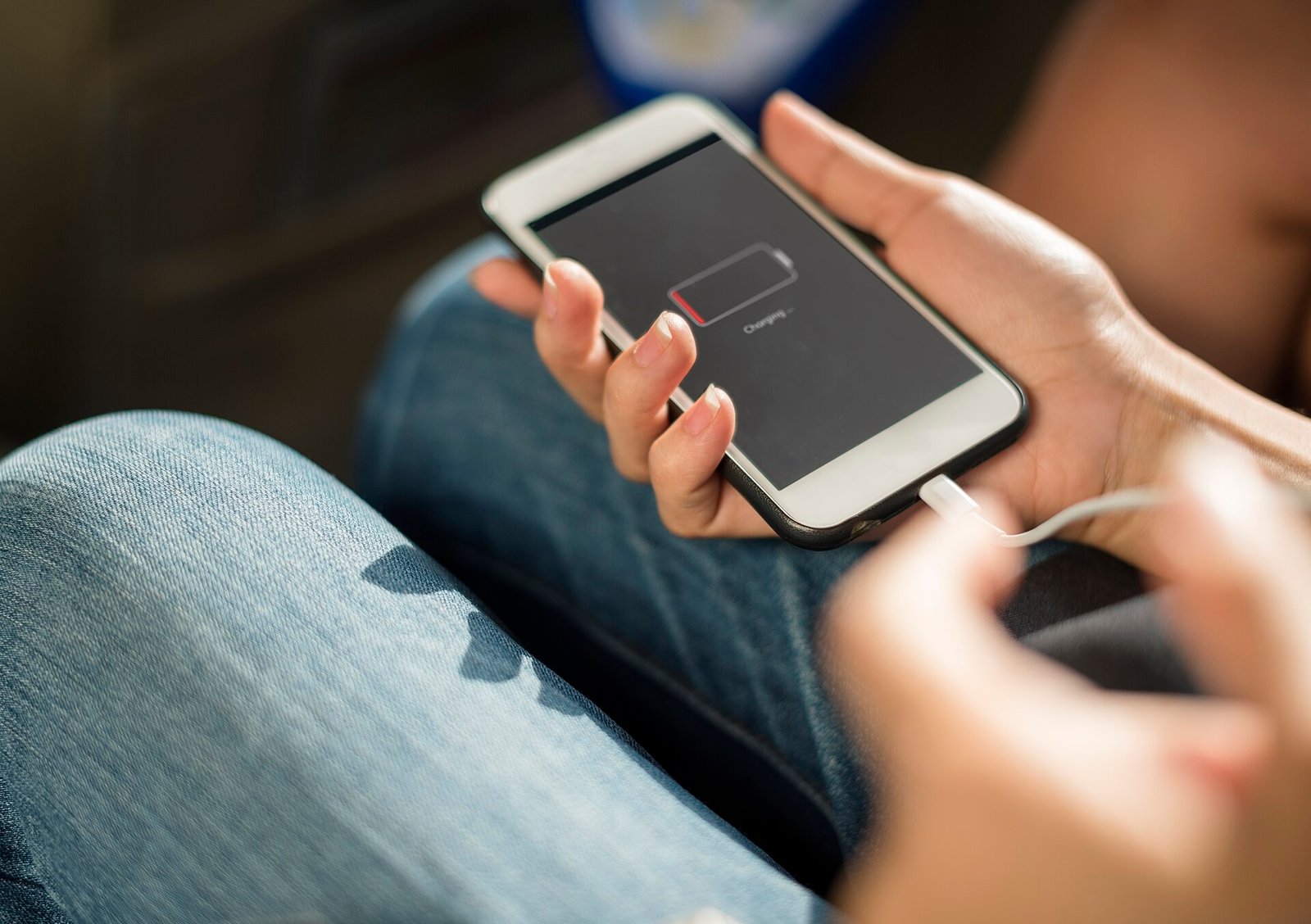
Battery complaints follow a predictable pattern. The phone lasted all day when it was new. Now it needs charging by mid-afternoon, and somewhere along the way this became normal.
Sometimes the battery has genuinely aged. Far more often something specific is draining it — a badly behaved app, a setting that was never appropriate, or a feature quietly running in the background. Those are fixable in a few minutes, without spending anything.
This guide starts by identifying what is actually consuming your battery, then works through the settings that make a real difference, ordered by how much they typically save. It ends with the popular advice that does not help, so you can stop doing it.
First: find out what is draining it
Do not change settings blindly. Look at the data your phone already collects.
Settings, Battery. Scroll down and you get a breakdown by app, for the last 24 hours or the last 10 days. Tap “Show Activity” to see screen-on versus background time for each.
What to look for:
- An app you barely use appearing high in the list — that is background activity, and it is the most common single cause.
- Large “background” time relative to “screen” time.
- A sudden change in the daily pattern, which usually points to a recently installed or updated app.
The graph at the top shows battery level over time. A steep drop overnight while you were asleep is a clear sign of background activity rather than ordinary use.
Also check Settings, Battery, Battery Health & Charging. Maximum Capacity tells you how much of the original capacity remains. Below roughly 80 per cent, the battery itself is a genuine part of the problem and no setting will fully compensate.
The settings that make the biggest difference
1. Screen brightness
The display is almost always the single largest consumer. Reducing brightness is the most effective change available.
Turn on auto-brightness in Settings, Accessibility, Display & Text Size, so it adapts rather than sitting at maximum. Then simply keep it lower than feels natural at first; you adjust quickly.
2. Background App Refresh
Apps updating themselves while you are not using them is pure overhead for most of them.
Settings, General, Background App Refresh. You can switch it off entirely, restrict it to Wi-Fi, or — the sensible middle path — leave it on and disable it individually for everything except the handful where fresh content genuinely matters.
3. Location services
Location is expensive, and many apps request it far more aggressively than they need.
Settings, Privacy & Security, Location Services. Go through the list. For most apps, “While Using” is appropriate and “Always” is not. A shopping app, a social app or a game has no reason to track location in the background.
Turn off Precise Location for apps that only need your general area.
Also look at System Services at the bottom of the same screen and disable the ones you do not need, particularly anything location-based that you never use.
4. Dark mode, if you have an OLED screen
On OLED displays, black pixels are switched off and use no power. Dark mode therefore produces a genuine saving.
This applies to iPhone X and later Pro and standard OLED models. On older LCD iPhones — including the SE line — it saves nothing, because the backlight runs regardless.
5. Low Power Mode
Reduces background activity, mail fetch, visual effects and some performance. Available in Settings, Battery, or from Control Centre if you add the toggle.
It is worth using more freely than most people do. There is nothing harmful about running in Low Power Mode routinely, and the reduction in capability is barely noticeable for messaging, calls and browsing.
6. Push email
Mail set to Push keeps a connection open. Fetching on a schedule, or manually, uses considerably less.
Settings, Apps, Mail, Mail Accounts, Fetch New Data. Turn off Push and choose Hourly, or Manually for accounts you check deliberately.
7. Notifications
Every notification wakes the screen. On an OLED phone, dozens of unnecessary wake-ups add up.
Settings, Notifications. Turn off anything that is not genuinely useful — most app notifications are marketing.
8. Widgets and Live Activities
Widgets update in the background. A home screen full of them costs battery. Keep the ones you use and remove the rest.
9. 5G settings
5G can consume more power than 4G, particularly where coverage is patchy and the phone is constantly searching or switching.
Settings, Cellular, Cellular Data Options, Voice & Data. Choosing 5G Auto lets the phone use 5G only when it is meaningfully better. In areas with weak or inconsistent 5G — which describes much of Nigeria outside the main cities — this helps, and setting it to LTE entirely can help more.
10. Automatic downloads and updates
Settings, App Store. Turning off automatic app updates and downloads stops the phone working while you are not using it. Update manually when convenient and on Wi-Fi.
11. Raise to Wake and Always-On Display
Raise to Wake turns the screen on every time you pick the phone up, including accidentally. Always-On Display, on Pro models, keeps the screen faintly lit permanently.
Both are conveniences with a measurable cost. Settings, Display & Brightness.
12. Motion effects
Settings, Accessibility, Motion, Reduce Motion. Small saving, and many people prefer the reduced animation anyway.
Charging habits that extend battery lifespan
Different question from daily runtime: how to keep the battery healthy over years.
Lithium batteries age fastest when kept at very high charge and when hot. Practical implications:
- Enable Optimised Battery Charging (Settings, Battery, Battery Health & Charging). The phone learns your routine and delays the final portion of charging until shortly before you wake, reducing time spent at 100 per cent.
- Avoid heat. This is the big one, and it matters more in a hot climate. Do not leave the phone in direct sun, on a car dashboard, or charging under a pillow. Heat damages batteries permanently and irreversibly.
- Take the case off if it gets hot while fast charging.
- Do not obsess over percentages. Occasional full charges are fine. Keeping it roughly between 20 and 80 per cent where convenient is marginally better, but not worth organising your life around.
- Use a decent charger. Counterfeit chargers are widespread and are a genuine risk to both the battery and the phone. Buy from a seller you can return to.
What does not help
Force-closing apps. This is the most persistent myth. iOS suspends background apps automatically; they are not running. Force-closing them means the phone must fully relaunch the app next time, which uses more power, not less. Close apps only when one is misbehaving.
Turning Wi-Fi off to save battery. Wi-Fi generally uses less power than mobile data. If Wi-Fi is available, use it.
Battery saver apps. They cannot do anything the operating system does not already do, and they consume resources themselves.
Letting the battery fully discharge. This was advice for older battery chemistry. It does not apply to lithium-ion and is mildly harmful.
Charging overnight being harmful. Modern iPhones stop charging at 100 per cent and manage this themselves. With Optimised Charging on, overnight is fine.
When it is the battery, not the settings
If Maximum Capacity is below about 80 per cent, if the phone shuts down unexpectedly at 20 or 30 per cent, or if it gets hot doing very little, the battery has aged.
A replacement restores full runtime and costs far less than a new phone. Use a reputable repair service — a poor-quality replacement cell is a safety issue, not just a performance one, and this is a real concern with cheap third-party repairs.
The short version
Check Settings, Battery first and find out which app is actually responsible. Then reduce brightness, restrict Background App Refresh and Location Services, and use Low Power Mode more freely than you probably do.
Use dark mode if your iPhone has an OLED screen, set 5G to Auto if coverage where you live is inconsistent, and turn off notifications you never act on.
Keep the phone out of the heat, which does more long-term damage than any charging habit. And stop force-closing apps — it makes things worse, not better.
Sources and verification
We checked the practical guidance on this page against the primary or authoritative references below. Follow the linked source for the latest official position before making a payment or time-sensitive decision.
- USB Implementers Forum: cables and connectors
- NIST: cryptographic standards and guidance
- Apple Support: technical specifications
- Android Open Source Project: platform security
Reviewed 23 August 2026. Corrections can be sent through our contact page.