USB-C was supposed to end cable confusion. One reversible connector for everything: phones, laptops, monitors, drives, chargers. No more wrong-way-round, no more separate cables for every device.
The connector succeeded. The simplicity did not. USB-C describes only the physical shape of the plug — it says nothing whatsoever about what the port or cable can actually do. Two identical-looking cables can differ by a factor of forty in data speed and by a large margin in charging capability. A port that charges your laptop may refuse to drive a monitor. A cable that came with your phone may charge it slowly and transfer files at a crawl.
This is genuinely one of the most common sources of wasted money and unnecessary frustration in consumer technology. This guide explains what varies, how to tell the difference, and what to buy.
The connector is not the standard
The essential thing to understand: USB-C is a shape. What travels through it is determined by which standards the port and the cable support.
A USB-C port might support any combination of:
Data at anywhere from 480 Mbps to 40 Gbps or more
Charging from a few watts to 240 watts
Video output to a monitor, or none at all
Thunderbolt, or not
None of this is visible from looking at the port. Manufacturers are inconsistent about labelling it, and cables are frequently sold without stating their capabilities at all.
Data speeds, and the renaming mess
The naming of USB data standards has been revised repeatedly, in ways that made things worse rather than better. Roughly, in plain terms:
Common name
Speed
What it feels like
USB 2.0
480 Mbps
Slow. Fine for a keyboard, painful for files
USB 3.0 / 3.1 Gen 1 / 3.2 Gen 1
5 Gbps
Perfectly adequate for most drives
USB 3.1 Gen 2 / 3.2 Gen 2
10 Gbps
Fast
USB 3.2 Gen 2×2
20 Gbps
Fast, less common
USB4
20 or 40 Gbps
Very fast
Thunderbolt 3 / 4
40 Gbps
Very fast, with extra guarantees
Thunderbolt 5
Up to 120 Gbps in some modes
Newest, high-end
Note the trap in that table: several different names describe the same speed, because the standards body renamed things retroactively more than once.
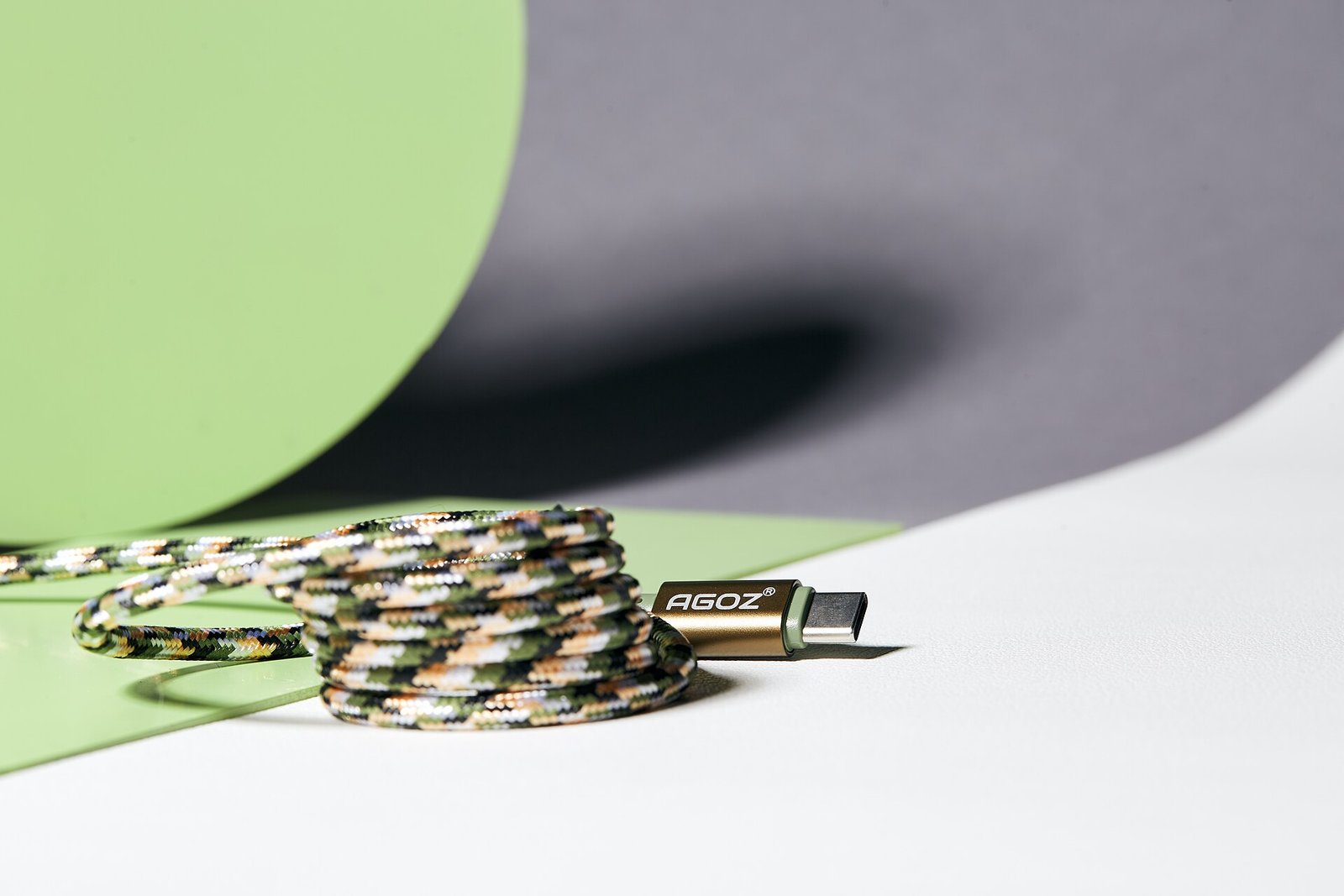
The practical point: a great many USB-C cables carry only USB 2.0 data at 480 Mbps. Most cables bundled with phones are exactly this. They charge fine and transfer files slowly. If you have ever wondered why copying video off your phone takes so long, the cable is the usual culprit.
Charging: Power Delivery
Charging over USB-C is governed by USB Power Delivery, which lets the device and charger negotiate voltage and current rather than assuming a fixed 5V.
Capability ranges from a few watts up to 240W in the newest revision. For that to work, three things must all support it: the charger, the cable, and the device.
Cables rated above 60W need an internal chip to identify themselves as capable of higher current. A cheap unmarked cable will typically cap at 60W regardless of what the charger can supply. This is why a laptop charges slowly on one cable and quickly on another that looks identical.
There are also proprietary fast-charging systems — used by several manufacturers popular in Nigeria, including on Tecno and Infinix devices — which achieve their advertised speeds only with the supplied charger and cable. Using a generic cable falls back to a slower standard mode. This is a genuine reason to keep the box contents rather than replacing them with the cheapest available substitute.
Video output: DisplayPort Alt Mode
Some USB-C ports can carry a video signal to a monitor, using what is called DisplayPort Alternate Mode. Many cannot.
This is not indicated on the port in any consistent way. A laptop may have three USB-C ports where only one drives a display. Checking the manufacturer’s specification is the only reliable method.
The cable matters too. A cable carrying only USB 2.0 data will not carry a high-resolution video signal.
What Thunderbolt adds
Thunderbolt uses the USB-C connector but is a distinct, stricter standard — originally from Intel, now more widely adopted.
Where USB-C capabilities are optional and variable, Thunderbolt guarantees a baseline. Thunderbolt 4 requires 40 Gbps data, support for driving displays, a minimum level of power delivery, and the ability to daisy-chain devices. If a port carries the Thunderbolt lightning-bolt symbol, you know what it can do without checking a specification sheet.
That guarantee is the real value. It is why docking stations, high-speed external SSDs and multi-monitor setups typically specify Thunderbolt: predictability.
Thunderbolt cables are more expensive because they contain more sophisticated components, particularly at longer lengths. Thunderbolt is backward compatible with USB-C devices, but a USB-C cable will not deliver Thunderbolt performance.
How to tell what you have
Look for symbols near the port. A lightning bolt indicates Thunderbolt. “SS” or “SS10” indicates SuperSpeed data at 5 or 10 Gbps. A battery symbol indicates charging capability. Many manufacturers, unhelpfully, print nothing.
Check the specification sheet for the laptop or phone. This is the only genuinely reliable method.
Look at the cable itself. Better cables print their wattage or speed rating on the connector housing. Unmarked cables should be assumed to be the slowest, lowest-power variety.
Test it. Copy a large file and observe the speed. If a transfer runs at roughly 40 MB/s, you are on USB 2.0.
Buying advice
Keep the charger and cable that came with your phone, particularly if it uses a proprietary fast-charging system. Generic replacements will charge more slowly.
Buy one good high-capability cable rather than several unknown ones. A cable rated for 100W and 10 Gbps handles essentially anything you will connect and removes the guesswork permanently.
Counterfeits are a real hazard. Popular chargers and cables are widely faked. A poorly made charger without proper protection circuitry can damage a device or worse. Buy from a seller you can return to and be sceptical of prices far below the market. This is not a category where the cheapest option is a bargain.
Label your cables. Genuinely worth doing. A small piece of tape marking which cable is the fast one saves recurring irritation.
For a monitor or dock, confirm the port supports video output before buying. This is the single most common expensive mistake in this area.
Cable length affects capability. Very long passive cables cannot sustain the highest speeds. Beyond a couple of metres at high speed, an active cable is required and costs considerably more.
The short version
USB-C is a connector shape, not a capability. The same plug may carry 480 Mbps or 40 Gbps, may charge at 15W or 240W, and may or may not drive a monitor — and none of that is visible from the outside.
Thunderbolt uses the same connector but guarantees a high baseline, which is what you pay for.
Buy one properly rated cable rather than a drawer full of unknown ones, keep the fast charger your phone came with, verify video support before buying a monitor or dock, and treat suspiciously cheap chargers as the genuine risk they are.
Sources and verification
We checked the practical guidance on this page against the primary or authoritative references below. Follow the linked source for the latest official position before making a payment or time-sensitive decision.
NFC is what makes tap-to-pay, contactless cards and instant device pairing work. Here is how it actually functions, why it only works at a few centimetres, and where Nigerians meet it every day.
Bluetooth is in every phone, earbud and speaker, and it drops at the worst moments. Here is how it actually works, what the version numbers mean, and how to fix the common failures.
DDR5 is faster than DDR4 on paper, but the practical difference is smaller than the marketing suggests. Here is what changed, when it matters, and how much RAM you actually need.
Wi-Fi 6, 6E and Wi-Fi 7 are marketing names for real technical changes. Here is what each one actually improves, and whether upgrading your router in Nigeria is worth the money.
Encryption is what stops other people reading your messages, your banking app and your files. Here is how it works in plain language, what it protects, and the limits worth knowing.
Cores, threads, clock speed, cache. Here is what a CPU actually does, what the specifications mean in practice, and which numbers matter when you are buying a phone or laptop.