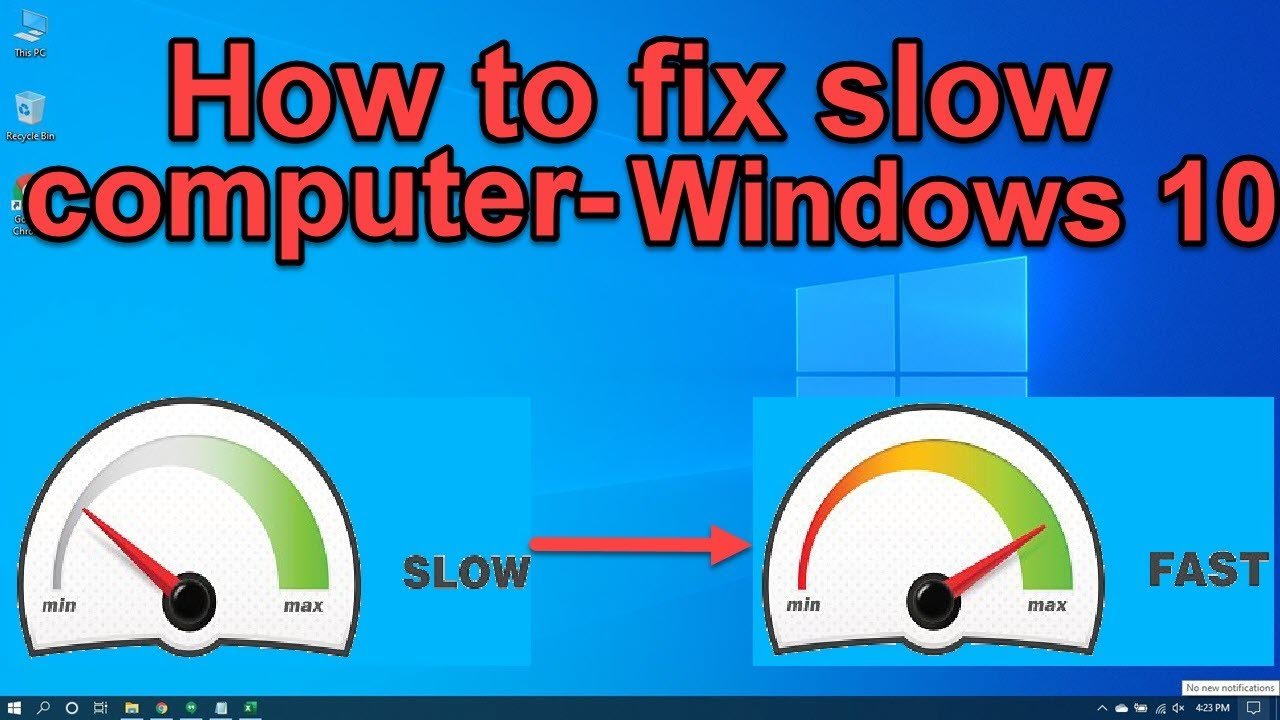
Every Windows computer slows down. The machine that booted in fifteen seconds when it was new takes two minutes, programs hesitate before opening, and the fan runs constantly while nothing appears to be happening.
The instinct is that the computer is simply old and needs replacing. Sometimes that is true. Far more often the machine is fine and something specific is wrong — a drive that is nearly full, a startup list that has grown for years, insufficient memory, or dust preventing the processor from running at full speed.
This guide works through the causes in order of how much difference they typically make, starting with the free fixes. Work down the list rather than jumping around; the early steps solve most cases, and you will know when you have found the real problem because the improvement will be obvious.
First: find out what is actually wrong
Before changing anything, look at what the machine is doing.
Press Ctrl + Shift + Esc to open Task Manager. Click “More details” if it opens in the compact view, then look at the Processes tab and sort by each column in turn.
What you are looking for:
CPU near 100% — something is consuming processing power. Note what.
Memory near 100% — you do not have enough RAM for what you are running. This is the most common cause of a machine that feels fine briefly then becomes unusable.
Disk at 100% — the storage is the bottleneck, which on a mechanical drive is extremely common.
One process using far more than the rest — you have found your culprit.
This takes two minutes and tells you which of the sections below actually applies to you.
Free fixes, in order of impact
1. Free up disk space
Windows needs free space to work. When a drive is nearly full, performance degrades sharply because the system has nowhere to put temporary files or page memory.
Check your C: drive. If it has less than about 15% free, this is likely your problem.
Open Settings, go to System, then Storage. Windows shows what is consuming space and offers Storage Sense to clean automatically. Run “Temporary files” cleanup and remove what you do not need — previous Windows installation files alone can occupy many gigabytes after an update.
Then look at Downloads. Almost everyone has years of accumulated installers and duplicates there.
2. Cut down what starts with Windows
Programs quietly add themselves to startup. After a few years, dozens launch at boot and sit in memory permanently.
In Task Manager, open the Startup apps tab. It lists everything that starts automatically along with a “Startup impact” rating.
Disable anything you do not need running from the moment you switch on — chat clients, updaters, printer utilities, cloud sync tools you use occasionally, game launchers. Disabling startup does not uninstall anything; the program still opens normally when you click it.
This is often the single most noticeable free improvement, particularly for boot time.
3. Uninstall what you do not use
Settings, Apps, Installed apps. Sort by size and by install date. Remove software you no longer use, trial software that came with the machine, and toolbars.
Be conservative with anything you do not recognise that appears to be from your PC’s manufacturer or from Intel, AMD or NVIDIA — some of those are drivers.
4. Check for malware
A machine that became slow suddenly, shows unexpected pop-ups, or has a browser homepage you did not set is a candidate.
Windows Security is built in and competent. Open it, choose Virus & threat protection, and run a full scan rather than a quick one. It takes a while; let it finish.
5. Update Windows and your drivers
Updates include performance and stability fixes. Settings, Windows Update, check for updates, install, restart. Graphics drivers in particular are worth getting from the manufacturer’s own site.
6. Clean out the dust
This one gets ignored and matters more in a dusty environment than most guides acknowledge.
Processors reduce their speed when they get too hot. A laptop with clogged vents or a desktop with a dust-filled heatsink will throttle heavily — the machine is not broken, it is protecting itself, and the result is exactly the sluggishness people blame on age.
Signs: the fan runs constantly and loudly, the chassis is hot, and performance collapses after a few minutes of work rather than being slow from the start.
Switch it off, unplug it, and clear the vents with compressed air. On a desktop, open the side and clean the fans and heatsink. Do not use a vacuum cleaner directly on internal components, and do not spin fans with the airflow — hold them still.
If you are comfortable doing it or can pay someone who is, replacing dried-out thermal paste on an older machine can produce a dramatic improvement.
7. Tame the browser
For many people the browser is the computer, and it is frequently the thing consuming everything.
Reduce the number of extensions — each one consumes memory. Close tabs you are not using, or use a tab-suspending extension. Clear the cache occasionally. Check the browser’s own task manager (Shift + Esc in Chrome-based browsers) to see which tab is the offender.
8. Turn off visual effects
Modest gains, but free on older hardware. Search for “Adjust the appearance and performance of Windows”, then choose “Adjust for best performance”, or keep a few effects you like.
9. Restart properly
Windows Fast Startup means shutting down does not fully clear system state. A machine that has not truly restarted in weeks accumulates problems. Choose Restart rather than Shut down, once a week.
The two upgrades genuinely worth paying for
If the free steps do not resolve it, two hardware changes deliver far more than any others.
An SSD, if you still have a mechanical hard drive
This is the single biggest improvement available to an older computer, and it is not close.
A mechanical drive has physically moving parts and is enormously slower than solid-state storage for the small scattered reads that an operating system performs constantly. Replacing it typically takes boot times from minutes to seconds and makes every application launch feel immediate.
How to tell what you have: open Task Manager, go to the Performance tab, and look at the Disk entry — it will say HDD or SSD. Alternatively, if your machine shows “100% disk usage” while barely doing anything, it is almost certainly a mechanical drive.
An SSD will make a seven-year-old laptop feel usable again. It is the best value upgrade in computing.
More RAM
If Task Manager showed memory near 100%, this is your fix.
4GB is inadequate for Windows now. 8GB is workable. 16GB is comfortable. Going from 4GB to 8GB, or 8GB to 16GB, transforms a machine that constantly runs out of working space.
Check first whether your laptop’s memory is upgradeable — many thin models solder it to the board — and confirm the type and maximum your machine supports before ordering.
If you have one stick, adding a second matching one also improves performance beyond the extra capacity, because memory runs faster in dual-channel mode.
When it really is time to replace it
Some honesty. Consider replacing rather than repairing if the machine cannot take more than 4GB of RAM, if it has a mechanical drive that cannot be replaced, if it is more than roughly eight to ten years old, if the battery and the drive and the memory all need work at once, or if it cannot run a supported version of Windows and therefore stops receiving security updates.
At that point the money is better spent on a modest new or refurbished machine than on upgrading something that will still be limited afterwards.
The short version
Open Task Manager first and find out what is actually saturated — processor, memory or disk. That one step tells you which fix applies.
Then work down: free up disk space, cut the startup list, uninstall unused software, scan for malware, update, and clean the dust out. Those are free and resolve the majority of cases.
If the machine is still slow, an SSD and more RAM are the only two purchases worth making, and an SSD in particular will do more for an old computer than anything else you could spend the same money on.
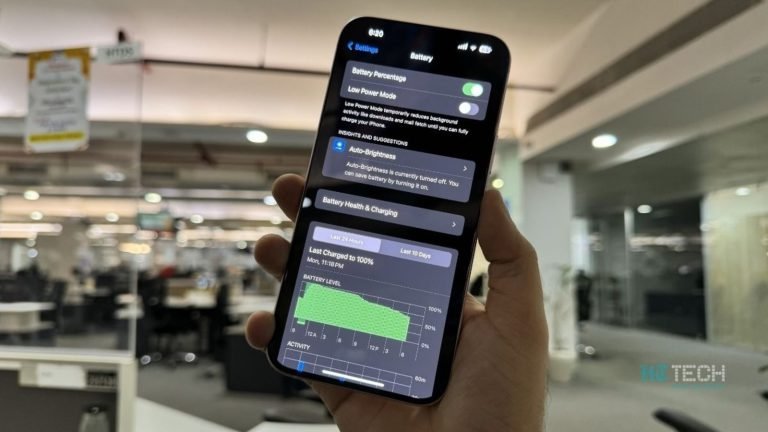
Battery health is a number most iPhone owners misread. Here is what it actually means, when replacement is genuinely worth it, and what damages a battery fastest.
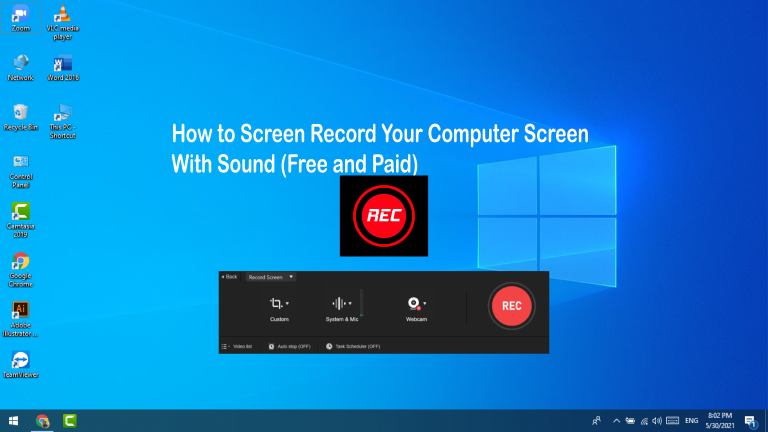
Every device can record its screen without extra software. Here is how to do it on Windows, Mac, iPhone and Android, including how to get the audio right.
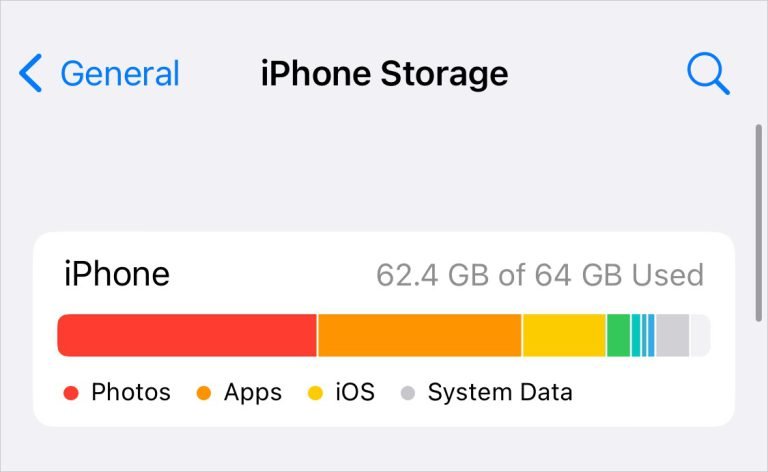
iPhone storage full? Here is where the space actually goes, the methods that reclaim the most, and how to stop it filling up again — without deleting your photos.
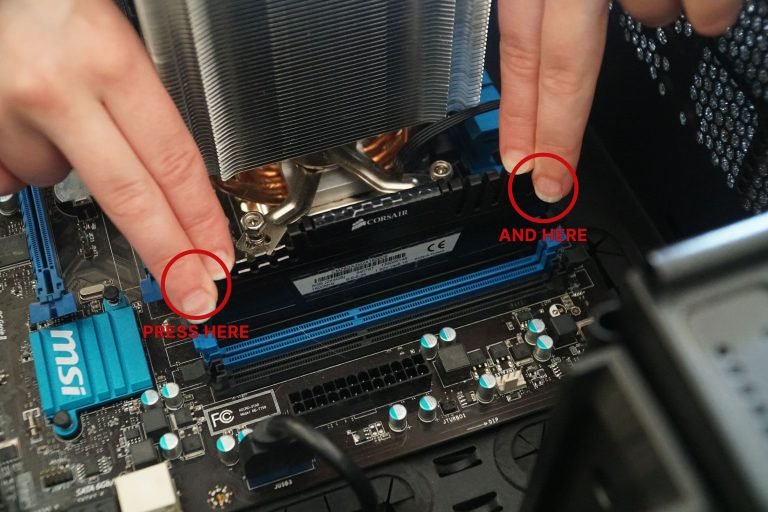
Adding RAM is the cheapest meaningful upgrade for most computers. Here is how to check what you need, buy the right kind, and install it without damaging anything.
Moving from iPhone to Android used to mean losing things. It no longer does, if you migrate in the right order. Here is the complete process, including what does not transfer.
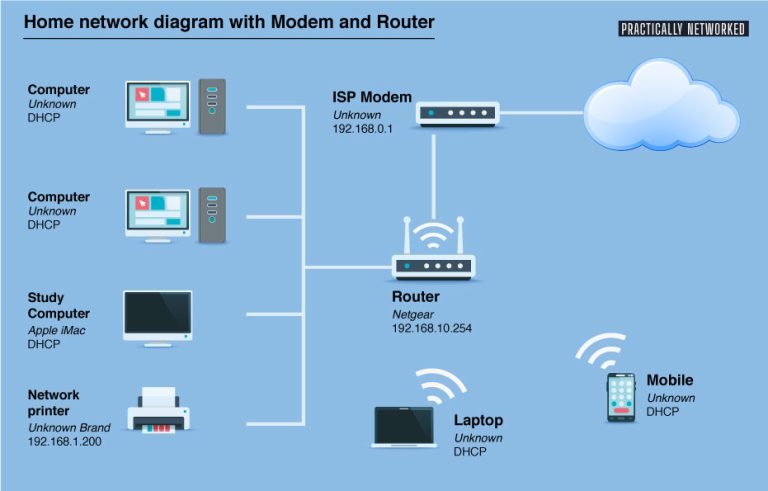
A home network is a router, some cables and some Wi-Fi. Here is how to set it up properly, position it for real coverage, secure it, and fix the dead spots.