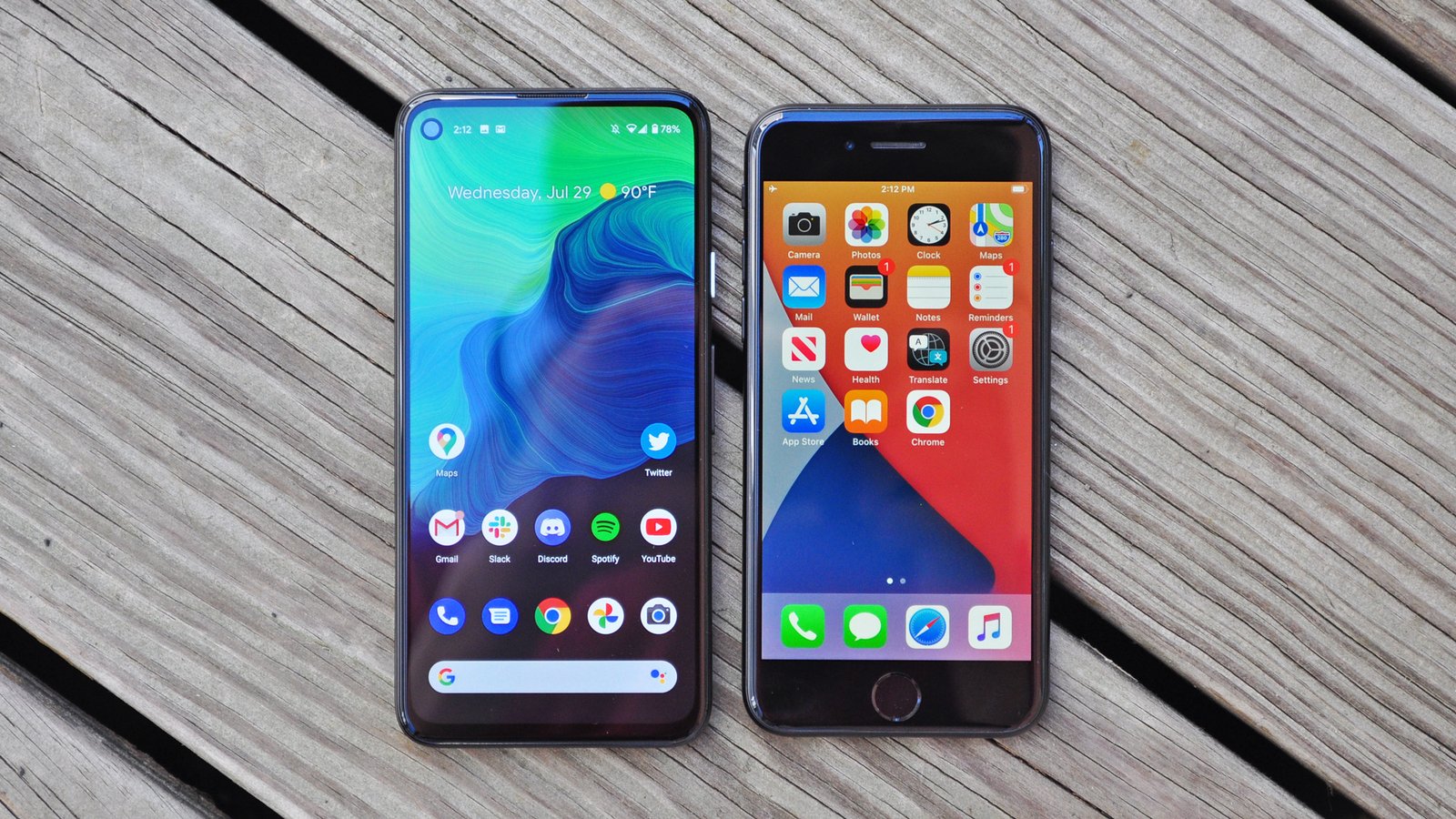
Switching from an iPhone to an Android phone is far easier than it used to be, and far easier than people expect. Google and every major Android manufacturer now provide migration tools that handle the bulk of the work automatically.
What still catches people out is the handful of things that do not transfer cleanly — iMessage, purchased apps, some subscriptions, and anything stored only in Apple’s own services. Handled in advance, none of these is a problem. Discovered afterwards, they range from irritating to genuinely costly.
This guide covers the whole process in order: what to do before you start, the transfer itself, what moves and what does not, and the specific step that stops your text messages disappearing.
Before you begin
Charge both phones to at least 50 per cent, or keep them plugged in. A transfer that fails halfway is tedious to restart.
Back up the iPhone. Even though you are leaving it, a current backup means you can retrieve anything you missed. Settings, tap your name, iCloud, iCloud Backup, Back Up Now.
Note which apps you actually use. Apps do not transfer as installations — you will reinstall them on Android. Scroll through your home screens and list the ones that matter.
Check your subscriptions. Anything bought through the App Store bills through Apple. Some will continue and remain manageable only from an Apple device or the web; others you will need to cancel and re-subscribe through Google Play or directly. Do this deliberately rather than discovering a duplicate charge later.
Connect to Wi-Fi. Transfers involve substantial data. Doing this over mobile data is an expensive mistake — a point worth emphasising given Nigerian data pricing.
The critical step: turn off iMessage
Do this before you remove your SIM. It is the single most common cause of “I switched to Android and stopped receiving texts from iPhone users”.
Apple’s system routes messages between Apple devices through iMessage rather than SMS. If your number remains registered with iMessage after you move to Android, iPhone users’ messages continue going to a service your new phone cannot access. They vanish.
On the iPhone: Settings, Messages, turn iMessage off. Also turn off FaceTime in Settings, FaceTime.
If you have already sold or wiped the iPhone, use Apple’s deregistration page on the web, where you can enter your number and remove it from iMessage. It takes a short while to propagate.
Do this first. Everything else can be fixed later; this one quietly loses messages for weeks.
The transfer itself
Every major Android manufacturer provides a migration tool, and they all work similarly. Samsung has Smart Switch, Google has its own setup flow, and others offer equivalents.
During initial setup of the new Android phone, when it asks whether you are copying from another device, choose to copy from an iPhone.
The two most common methods:
By cable. Connect the iPhone to the Android phone using a cable and the adapter usually supplied in the box. This is the fastest and most reliable method, and it does not consume mobile data. Use it if you can.
Wirelessly, via your Google or iCloud account. The Android phone signs into your accounts and pulls data down. Slower and dependent on connection quality.
Follow the prompts, keep both phones awake and connected, and allow time — a large photo library can take a considerable while.
If you have already completed setup on the Android phone, you can still run the transfer later through the manufacturer’s app, or factory reset and start again to use the full setup flow.
What transfers, and what does not
Transfers reliably:
Contacts
Calendar entries
Photos and videos
SMS messages
Call history
Music files not protected by DRM
Documents and files
Wallpaper, in some tools
Does not transfer:
Apps themselves. You reinstall from Google Play. Most popular apps exist on both platforms; a few iOS-only ones do not.
App purchases. Money spent on an iOS app does not carry across. In-app purchases tied to an account — a game account, a subscription linked to an email login — usually do, provided you sign in with the same account rather than through Apple.
iMessage conversation history. Individual messages may come across as SMS depending on the tool, but iMessage threads do not migrate as such.
Apple-only services. Apple Music playlists need a conversion tool or a fresh setup. iCloud Photos must be downloaded or synced to Google Photos. Notes, Reminders and Safari bookmarks vary by tool.
Health data. Apple Health does not export to Android in any convenient way. Export it before switching if it matters to you.
Apple Watch. It will not work with an Android phone at all. This is worth knowing before you switch rather than after.
After the transfer
Check your photos actually arrived. Count them roughly, or check the oldest and newest. Do not wipe the iPhone until you have confirmed.
Sign in to your Google account and let contacts and calendar sync.
Reinstall your apps and sign in to each. Use the list you made earlier.
Set up two-factor authentication again where it was tied to the old device. This is the step that traps people: authenticator apps do not transfer automatically, and losing your codes locks you out of accounts. If you use an authenticator, migrate it deliberately — most now offer an export or cloud sync option — before wiping the iPhone.
Move your two-factor recovery numbers where relevant.
Set up your bank apps. Nigerian banking apps generally bind to a device, so expect to re-register and possibly to confirm via OTP or in branch.
Transfer WhatsApp. WhatsApp offers an iPhone-to-Android transfer during setup, using a cable. Do it during initial setup — the option is not available afterwards without more effort. Your chat history is otherwise not carried over, because iPhone backups live in iCloud and Android backups in Google Drive, and the two do not interchange.
Keep the iPhone until you are sure
Do not wipe or sell it for at least a week. Check as you go that photos, contacts, messages and accounts all arrived. Something is almost always missed, and having the original still available makes it a minor annoyance instead of a permanent loss.
When you are ready: Settings, General, Transfer or Reset iPhone, Erase All Content and Settings. Also remove it from your Apple account so it is not still linked, and remember to turn off Find My first.
The short version
Turn off iMessage before anything else. Charge both phones, back up the iPhone, note your apps, and check your subscriptions.
Use a cable and the manufacturer’s migration tool during initial setup of the new phone — it is faster, more reliable, and does not consume mobile data. Transfer WhatsApp during that same setup, because the option disappears afterwards.
Expect contacts, photos, messages and calendar to arrive automatically, and expect apps, app purchases, Apple-only services and Health data not to. Migrate your authenticator app deliberately.
Then keep the old phone for a week before wiping it.
You can password protect a PDF without paying for software. Here are the free methods on Windows, Mac, phone and online, and which ones are actually secure.
Most people have no real backup until they lose something. Here is how to back up Windows, Mac and phones properly, what the 3-2-1 rule means, and why sync is not backup.
A home network is a router, some cables and some Wi-Fi. Here is how to set it up properly, position it for real coverage, secure it, and fix the dead spots.
Battery health is a number most iPhone owners misread. Here is what it actually means, when replacement is genuinely worth it, and what damages a battery fastest.
Adding RAM is the cheapest meaningful upgrade for most computers. Here is how to check what you need, buy the right kind, and install it without damaging anything.
Monitor specifications are full of numbers that sound important. Here is what resolution, panel type and refresh rate actually mean, and how to choose without overpaying.