“iPhone Storage Full” arrives at the worst possible moment: when you are trying to take a photo, install an update, or record something you cannot repeat. And the usual response — deleting a few apps at random and hoping — reclaims very little, because it targets the wrong things.
Storage on an iPhone is consumed by a fairly predictable set of culprits, and they are not evenly sized. Photos and video usually dominate. Messages come second more often than people expect. Then a category iOS calls “System Data” that behaves strangely and worries people unnecessarily.
This guide shows you where the space has actually gone, works through the methods that reclaim the most first, and covers how to stop the problem recurring.
First: see where it went
Settings, General, iPhone Storage.
Wait a moment for it to calculate. You get a coloured bar showing the breakdown, then a list of apps sorted by size, largest first.
Two numbers matter for each app: the app itself, and its documents and data. A messaging app might be 200MB of app and several gigabytes of accumulated attachments. That distinction tells you whether to delete the app or clear its contents.
At the top, iOS also offers personalised recommendations. They are usually worth reading; some are genuinely effective.
The methods that reclaim the most
1. Photos and videos — almost always the biggest
For most people this is the majority of used storage, and video is the reason. A few minutes of 4K footage consumes more than hundreds of photos.
Optimise iPhone Storage. Settings, Apps, Photos, and choose Optimise iPhone Storage. Full-resolution originals live in iCloud; the phone keeps smaller versions and downloads the original when you need it. This can free an enormous amount immediately.
The catch is that it requires enough iCloud space, and the free tier is small. If you have more photos than free iCloud allowance, you either pay for storage or use the next option.
Move them off the phone entirely. Copy photos and videos to a computer, an external drive, or another cloud service, then delete them from the phone. Verify the copy opens before deleting anything.
Empty Recently Deleted. Photos, Albums, scroll to Recently Deleted. Deleted photos remain for 30 days and still occupy space. Emptying this frequently frees gigabytes that people assume they had already reclaimed.
Check for duplicates. Photos, Albums, Duplicates. iOS finds them and offers to merge.
Review your video settings. Settings, Camera, Record Video. 4K at 60fps looks superb and consumes storage extremely quickly. 1080p at 30fps is a fraction of the size and perfectly good for most purposes. Also turn off HDR video if you do not need it, and consider disabling Live Photos, which stores a short video with every still.
2. Messages — the overlooked one
Message attachments accumulate for years. Every photo, video and voice note anyone ever sent you.
Settings, Apps, Messages, Keep Messages — change from Forever to 1 Year or 30 Days. iOS then removes older messages and their attachments automatically.
Before doing that, review large attachments: Settings, General, iPhone Storage, Messages, and look at Review Large Attachments. You can delete the biggest items individually while keeping the conversations.
WhatsApp deserves its own attention here, because in Nigeria it is usually the single largest offender. Open WhatsApp, Settings, Storage and Data, Manage Storage. It shows the largest files and the chats consuming most space, and lets you delete media in bulk while keeping the conversations. Also turn off automatic media download — Settings, Storage and Data, and set photos, audio, video and documents to never download automatically, or Wi-Fi only. This saves both storage and data.
3. Offload unused apps
Settings, General, iPhone Storage, Offload Unused Apps. This removes the app while keeping its documents and data. The icon stays on your home screen with a small cloud symbol, and tapping it reinstalls and restores your data.
You can enable this automatically, or offload individually from the app list.
4. Downloaded media
Streaming apps store downloads for offline viewing and people forget. Check Netflix, YouTube, Spotify, Apple Music and any podcast app for downloaded content you have already watched or listened to.
Podcast apps in particular accumulate episodes silently. Most have a setting to delete played episodes automatically.
5. Browser cache
Settings, Apps, Safari, Clear History and Website Data. Modest but free.
6. Old iOS update files
If a downloaded update failed or you postponed it, the installer may still be sitting there. It appears in the iPhone Storage list and can be deleted.
About “System Data”
This category confuses and alarms people. It can appear enormous — many gigabytes — with no explanation.
System Data holds caches, logs, temporary files, streaming buffers, Siri voice files and various other components. iOS manages it automatically and clears it when space is needed, which is why it can shrink on its own without you doing anything.
If it has grown unreasonably large, the reliable remedies are: restart the phone, which clears some caches; delete and reinstall the largest apps, which clears their caches; and as a last resort, back up and restore the phone, which rebuilds the file system cleanly.
What does not work is any app claiming to clean it. iOS does not permit that level of access, and such apps cannot do what they advertise.
Stopping it filling up again
Set video recording to 1080p unless you specifically need 4K.
Turn off automatic WhatsApp media download.
Set Messages to keep 1 year rather than forever.
Enable Offload Unused Apps.
Empty Recently Deleted every month or so.
Turn off Live Photos if you never use the effect.
Review downloads in streaming apps periodically.
A note on buying storage
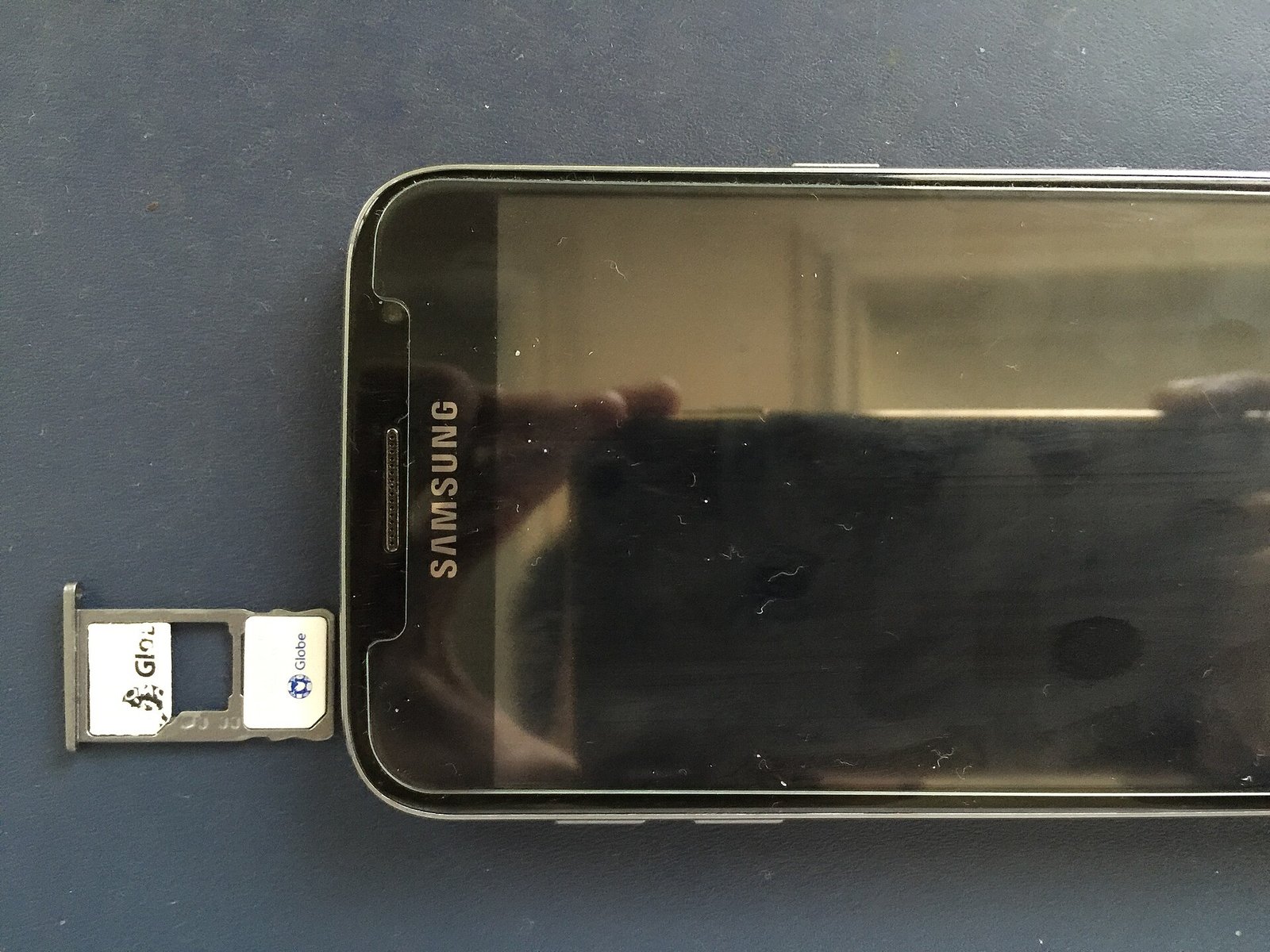
If you are constantly managing storage on a 64GB or 128GB iPhone, the honest answer is that the phone is too small for how you use it. When you next buy, the cost difference for more storage is far less than the ongoing irritation, and iPhone storage cannot be expanded later — there is no memory card slot.
For anyone taking a lot of video, 256GB is the sensible starting point now.
The short version
Open Settings, General, iPhone Storage and look before deleting anything. Photos and video are usually the bulk, WhatsApp is usually second, and Messages attachments are the ones nobody thinks of.
Optimise Photos or move them off the phone, empty Recently Deleted, clear WhatsApp media, set Messages to expire after a year, and offload apps you do not use.
Then change the two settings that stop it recurring: record video at 1080p, and turn off automatic media download in WhatsApp. Those two alone will keep most phones comfortable.
Sources and verification
We checked the practical guidance on this page against the primary or authoritative references below. Follow the linked source for the latest official position before making a payment or time-sensitive decision.
Most people have no real backup until they lose something. Here is how to back up Windows, Mac and phones properly, what the 3-2-1 rule means, and why sync is not backup.
Factory resetting Windows 11 fixes problems a clean-up cannot. Here is every reset option explained, what each one keeps, and how to do it without losing anything.
External drives are where counterfeits and fake capacities are most common. Here is how to choose one, how to test it, and why an untested drive is not a backup.
A home network is a router, some cables and some Wi-Fi. Here is how to set it up properly, position it for real coverage, secure it, and fix the dead spots.
Monitor specifications are full of numbers that sound important. Here is what resolution, panel type and refresh rate actually mean, and how to choose without overpaying.
You can password protect a PDF without paying for software. Here are the free methods on Windows, Mac, phone and online, and which ones are actually secure.