Most people set up a home network by plugging in whatever the internet provider delivered, accepting the default network name and password printed on the sticker, and never touching it again. It works, more or less, and the parts that do not work — the bedroom with no signal, the video call that stutters, the router that needs restarting weekly — get treated as facts of life.
They are usually not. Most home network problems come from a handful of fixable causes: the router is in the wrong place, everything is crowded onto one radio band, the equipment supplied was minimal, or the connection is being shared badly.
This guide covers how a home network actually fits together, how to set one up properly, where to put the router, how to secure it, and how to extend coverage when one router genuinely is not enough.
The parts, and what each does
The incoming connection. Fibre, fixed wireless, or mobile data. This is what you pay the provider for, and it sets the ceiling on everything.
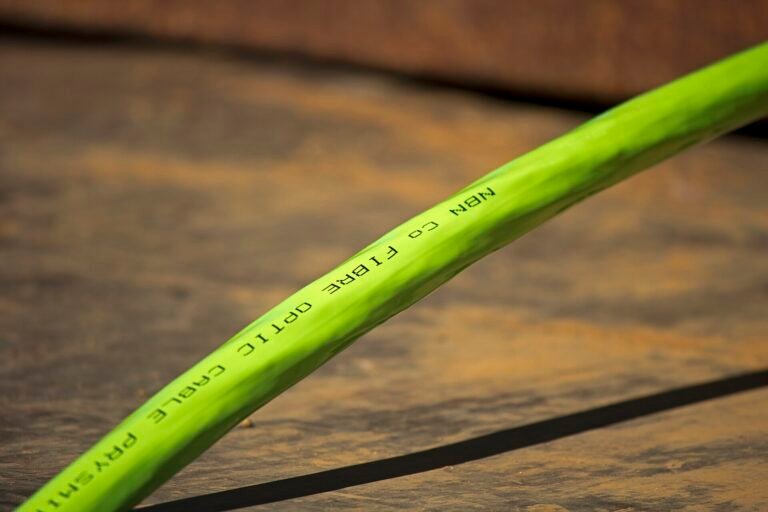
The modem or ONT. Converts the provider’s signal into standard network data. With fibre this is usually an ONT — a small box the installer mounts.
The router. The heart of it. Directs traffic between your devices and the internet, assigns addresses, and provides the firewall.
The access point. Provides the Wi-Fi. In most homes this is built into the router, but it is a separate function, which matters when you extend coverage.
The switch. Adds more wired ports if the router does not have enough.
Most home setups combine modem, router, switch and access point into one box. That is convenient and it is also the source of a common problem: the best place for the incoming line is rarely the best place for Wi-Fi.
Setting it up
1. Connect the router to the modem or ONT. Use the port labelled WAN or Internet, usually a different colour from the rest.
2. Power on in order. Modem first, wait until its lights settle, then the router. Getting this backwards is a common cause of “no internet” on a new installation.
3. Log into the router. The address is on the sticker, typically something like 192.168.1.1 or 192.168.0.1, entered into a browser. The default username and password are on the same sticker.
4. Change the admin password immediately. This is the password for the router itself, not the Wi-Fi. Default admin credentials are published for every model in existence.
5. Set your Wi-Fi network name and password. Choose a name that does not identify your house or your name. Use a long password — length beats complexity.
6. Choose WPA3 if available, otherwise WPA2. Never WEP, which is broken, and never leave it open.
7. Separate the bands. Most routers broadcast 2.4 GHz and 5 GHz. Giving them distinct names — “MyWiFi” and “MyWiFi-5G” — lets you deliberately put nearby devices on the faster band and distant ones on the band that travels further. Some routers combine them automatically, which is convenient but sometimes chooses badly.
8. Update the firmware. Check for an update in the admin interface. Routers receive security fixes and almost nobody installs them.
Where to put the router
This is the highest-impact decision and the one most often made badly, because the router usually ends up wherever the cable enters the building.
Central. Wi-Fi radiates outward in all directions. A router in a corner sends most of its signal to your neighbours.
Elevated. On a shelf, not on the floor. Signal spreads outward and slightly downward.
In the open. Not in a cupboard, not behind a television, not inside a media unit. Enclosures absorb signal badly.
Away from interference. Microwaves, cordless phones and large metal objects all disrupt 2.4 GHz.
Away from water. Fish tanks and water tanks absorb Wi-Fi remarkably effectively.
Concrete block walls, common in Nigerian construction, attenuate Wi-Fi far more than the plasterboard assumed in most manufacturer coverage claims. Expect real-world range considerably below the advertised figure, and expect 5 GHz in particular to struggle through more than one wall.
If the incoming line is in a bad spot, run an Ethernet cable to a better location and put the router there. This is more effort than moving furniture and it is by far the most effective fix available.
Wired where it matters
Wi-Fi is convenient. Cable is better. For anything stationary and important — a desktop, a games console, a smart TV, a work computer — a cable delivers more speed, far lower latency, and complete immunity to interference.
It also helps everything else, because each device you move off Wi-Fi frees capacity for the devices that genuinely need to be wireless.
Cat 5e is sufficient for most home speeds. Cat 6 costs slightly more and is sensible if you are running cable through walls where replacing it later would be painful.
Securing it properly
Change the router admin password. The most important step, and the most skipped.
Use WPA3 or WPA2 with a long Wi-Fi password.
Disable WPS. The push-button pairing feature has known weaknesses.
Disable remote administration unless you genuinely need it, so the router’s settings cannot be reached from the internet.
Set up a guest network for visitors and for smart-home gadgets. It gives internet access without exposing your main network and the devices on it.
Keep firmware updated.
Check connected devices occasionally in the admin interface. If something is there you do not recognise, change the Wi-Fi password.
Fixing dead spots
If one router cannot cover the building — common with concrete walls or multiple floors — you have three options, in increasing order of effectiveness.
Wi-Fi extenders repeat the signal. Cheap and simple, but they typically halve throughput because the device talks to the extender and the extender talks to the router over the same radio. Use only for a small spot where any signal beats none.
Mesh systems use multiple units that coordinate properly and hand devices between them without dropping the connection. Considerably better than extenders. The units still communicate wirelessly unless you can cable them.
Wired access points are the best answer. Run Ethernet to a second location and put an access point there. Full speed, no compromise. More installation effort, dramatically better result. Many mesh systems support this, which gives you the best of both.
Practical points for Nigerian homes
Power interruptions. Every outage restarts your router and ONT, and re-establishing the connection takes time. A small UPS keeping the router and ONT running through short interruptions is one of the most worthwhile purchases in this whole article. It costs little and removes a daily irritation.
Surge protection. Voltage fluctuation kills network equipment. A surge protector is cheap relative to replacing a router.
Mobile data routers. If your connection is a MiFi or a router with a SIM, the same Wi-Fi placement advice applies, plus one addition: the device also needs decent mobile signal, so there is a trade-off between the best spot for reception and the best spot for coverage. Sometimes a window-facing position with an Ethernet run to a better-placed access point is the answer.
Shared connections. If several households share one line, expect evening congestion regardless of your equipment. No router setting fixes an oversubscribed link.
Quick troubleshooting
No internet anywhere: restart modem and router, in that order, waiting for each. Check provider status.
Wi-Fi works but one device will not connect: forget the network on that device and reconnect.
Slow only in one room: placement or distance. Test beside the router to confirm.
Slow everywhere at certain times: congestion, either your provider’s or your own household’s.
Frequent disconnections: check for overheating, try a different Wi-Fi channel, and confirm the firmware is current.
The short version
A home network is a router doing several jobs at once. Set it up properly by changing the admin password, using WPA2 or WPA3 with a long passphrase, separating the bands so you can choose, and updating the firmware.
Then put the router somewhere central, elevated and out in the open, because placement matters more than specifications. Run cable to anything stationary. Add a UPS so power interruptions stop resetting everything.
If coverage still falls short, prefer a mesh system over an extender, and prefer a wired access point over both.
Sources and verification
We checked the practical guidance on this page against the primary or authoritative references below. Follow the linked source for the latest official position before making a payment or time-sensitive decision.
Battery health is a number most iPhone owners misread. Here is what it actually means, when replacement is genuinely worth it, and what damages a battery fastest.
Wi-Fi 6, 6E and Wi-Fi 7 are marketing names for real technical changes. Here is what each one actually improves, and whether upgrading your router in Nigeria is worth the money.
Factory resetting Windows 11 fixes problems a clean-up cannot. Here is every reset option explained, what each one keeps, and how to do it without losing anything.
Latency is the delay between doing something and seeing the result. It matters more than download speed for calls, gaming and video. Here is what causes it and how to reduce it in Nigeria.
Monitor specifications are full of numbers that sound important. Here is what resolution, panel type and refresh rate actually mean, and how to choose without overpaying.
Moving from iPhone to Android used to mean losing things. It no longer does, if you migrate in the right order. Here is the complete process, including what does not transfer.