An external drive is the most practical protection against losing everything on your computer or phone, and it is also a product category with a specific and widespread fraud problem: drives that report a large capacity while actually containing far less.
That combination makes this a purchase worth thinking about properly. A drive you cannot trust is worse than no drive, because it produces confidence without protection.
SSD or mechanical hard drive?
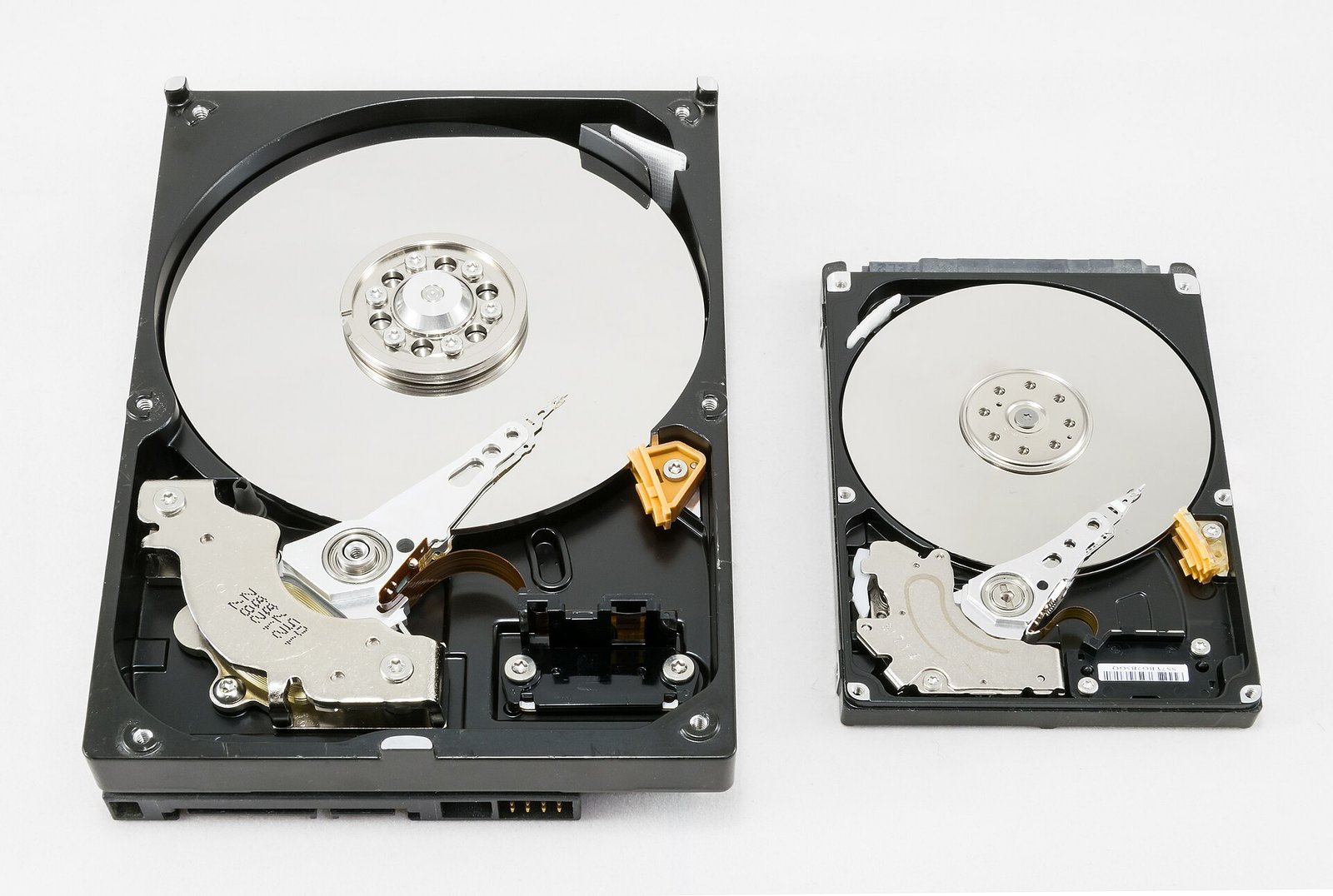
Mechanical hard drives (HDD) contain spinning platters and a moving head. They offer far more capacity per naira, and they remain the sensible choice for bulk storage — backups, archives, media libraries.
Their weaknesses are speed and fragility. They are slow, and a knock while running can destroy them. They are not the drive to carry in a bag every day.
Solid state drives (SSD) have no moving parts. Much faster, silent, physically robust, and considerably more expensive per gigabyte.
Choose an SSD if you carry it around, edit video or photos directly from it, or want fast backups.
Choose an HDD if you want maximum capacity for the money and the drive will sit on a desk.
For many people the sensible answer is both: an SSD for working files and a larger HDD for archive and backup.
Capacity
Buy roughly twice what you currently need. Drives fill faster than expected, and a backup drive needs room for version history rather than a single copy.
Note that the advertised capacity and the capacity your computer reports will differ — a “1TB” drive shows as roughly 931GB. This is a difference between how manufacturers and operating systems count, not a fault and not fraud. Actual fraud looks different, and is covered below.
Connection
USB-C is now standard and reversible. USB-A remains common on older machines.
The important point is that the connector shape tells you nothing about the speed. A USB-C drive may run at 5 Gbps, 10 Gbps, 40 Gbps or, on cheap products, at USB 2.0 speeds of 480 Mbps.
Check the stated transfer speed rather than the connector, and use the cable supplied — a slower cable will bottleneck a fast drive.
For an SSD, a 10 Gbps connection is a sensible target. Anything less wastes the drive’s capability.
The counterfeit capacity problem
This is the fraud specific to this category and it is common enough to warrant real caution.
Counterfeit drives are manufactured with a small amount of actual storage but with the controller modified to report a much larger capacity to the computer. The drive appears normal. You can copy files to it and they seem to be written successfully.
The failure comes later. Once you exceed the real capacity, the drive silently discards or overwrites data. Files appear in the folder listing but are corrupt or empty when opened. People discover this when they try to restore a backup, which is the worst possible moment.
How to protect yourself:
Buy from an established seller you can return to, and prefer known brands.
Treat an unusually low price as the warning it is. A 2TB SSD at a fraction of the market rate is not a bargain.
Test the drive immediately on receipt.
How to test a new drive
Do this before trusting it with anything. It takes time but is largely unattended.
The simple method: copy a genuinely large quantity of real files onto the drive — enough to approach its stated capacity — then open a selection of them from the drive, including some copied last. If files near the end are corrupt or will not open, the capacity is fake.
The better method: use a capacity verification tool. Applications exist for Windows, Mac and Linux that write test patterns across the entire drive and read them back, confirming that the reported capacity is real. Searching for a drive capacity test tool will find several free options.
Also check drive health with a tool that reads the drive’s own SMART data, which reports errors and, on a mechanical drive, warning signs of impending failure.
Do this within any return window.
Using it as an actual backup
Owning a drive is not the same as having a backup.
Set up automatic backup. Windows File History or Mac Time Machine. A backup that depends on you remembering will eventually not happen.
Keep the drive disconnected between backups. A permanently attached drive can be encrypted by ransomware along with everything else.
Follow 3-2-1 where you can: three copies, two types of storage, one somewhere else. An external drive covers part of this; a cloud copy covers the offsite part.
Test a restore occasionally. Retrieve a file and open it. An untested backup is a belief.
Do not store the only copy of anything on one drive. All drives fail eventually.
Practical care
Eject properly before unplugging, particularly with mechanical drives, to avoid corruption.
Do not move a mechanical drive while it is running. This is when the heads can contact the platters.
Keep them away from heat. Both types degrade faster when hot, and a drive left in a car is a drive being damaged.
Keep them dry and dust-free, and consider a case for anything carried regularly.
Label them. Which drive holds which backup becomes unclear surprisingly quickly.
Choosing for a purpose
Backup for a laptop: a mechanical drive of ample capacity, kept at home, connected periodically.
Carrying files daily: an SSD, for speed and durability.
Video editing: an SSD on a fast connection, since editing from a slow drive bottlenecks everything.
Phone photo offload: an SSD with a USB-C connection that works directly with the phone.
Long-term archive: mechanical drives, with two copies, checked occasionally, because drives left unused for years can fail on wake.
The short version
Choose an SSD for portability and speed, a mechanical drive for capacity per naira, and consider owning both.
Check the stated transfer speed rather than assuming from the connector, and use the supplied cable.
Then take the counterfeit capacity problem seriously: buy from a seller you can return to, treat an unusually low price as a warning, and test the drive fully on arrival before trusting it with anything.
And remember that owning a drive is not a backup. Automate it, disconnect it between runs, keep an offsite copy, and restore a file occasionally to confirm the whole thing actually works.
Sources and verification
We checked the practical guidance on this page against the primary or authoritative references below. Follow the linked source for the latest official position before making a payment or time-sensitive decision.
Wireless earbuds are one of the most counterfeited products sold in Nigeria. Here is what actually matters, how to spot a fake, and what to check before you pay.
Most people have no real backup until they lose something. Here is how to back up Windows, Mac and phones properly, what the 3-2-1 rule means, and why sync is not backup.
iPhone storage full? Here is where the space actually goes, the methods that reclaim the most, and how to stop it filling up again — without deleting your photos.