Backup is the task everyone agrees is important and almost nobody actually does. It sits alongside flossing and reading terms of service: obviously sensible, endlessly deferred, and suddenly urgent at exactly the wrong moment.
The urgency arrives as a stolen laptop, a drive that will not spin up, a phone dropped in water, ransomware, or a folder deleted in a hurry. At that point the question is not what your backup strategy is. It is whether a copy exists at all.
The good news is that a genuinely adequate backup takes about an hour to set up and then runs itself. This guide covers what to back up, the rule worth following, how to do it on each platform, and the distinction that causes most of the losses.
Sync is not backup
Start here, because this misunderstanding is responsible for more data loss than hardware failure.
Sync mirrors a folder between your device and a server. Change a file in one place and it changes everywhere. This is what OneDrive, Google Drive, iCloud Drive and Dropbox do by default.
Backup keeps separate, dated copies so you can go back to how things were.
The difference matters at exactly the moment you need it. If you delete a folder by accident, sync deletes it from the cloud too. If ransomware encrypts your documents, sync faithfully encrypts the cloud copies. If a file becomes corrupted, sync propagates the corruption.
Most cloud services keep deleted files and previous versions for a limited window, which rescues people regularly. But that window is finite, it varies by service and plan, and relying on it is not a strategy.
If your entire plan is “everything is in Google Drive”, you have convenience and some protection against a lost laptop. You do not have a backup.
The 3-2-1 rule
The long-standing rule, and it remains sound:
3 copies of anything you cannot lose
2 different types of storage
1 copy in a different physical location
In practice for a household: the working copy on your computer, a backup on an external drive at home, and a cloud copy offsite.
The offsite copy is the one people skip and the one that matters for fire, flood and theft — the events that take your computer and the external drive sitting next to it in the same movement.
What actually needs backing up
Be selective. Backing up everything indiscriminately makes the process slow and the restore painful.
Essential and irreplaceable: photos and videos, documents, financial and business records, project work, anything you created.
Worth including: email if stored locally, browser bookmarks, application settings and licence keys, contacts.
Usually not worth it: the operating system and installed applications, which can be reinstalled; downloaded films and music you can retrieve again; temporary files.
The test is simple: could you replace it, and how painful would replacing it be? Family photos score highest. A downloaded film scores zero.
Backing up Windows
File History is built in and handles documents well. Connect an external drive, then Settings, System, Storage, Advanced storage settings, Backup options. It keeps versions of files in your user folders, so you can recover an earlier state rather than only the latest.
A full system image captures everything including Windows and applications. Windows includes an older tool for this, and third-party alternatives are generally better. Useful if reinstalling from scratch would cost you a lot of time.
Cloud: OneDrive is integrated and can back up Desktop, Documents and Pictures automatically. Remember the sync caveat above — enable version history and understand its limits.
The practical combination: File History to an external drive, plus a cloud service for your documents folder, plus a separate copy of photos somewhere you do not routinely touch.
Backing up a Mac
Time Machine is genuinely excellent and requires almost no thought. Connect an external drive, agree when macOS offers to use it for Time Machine, and it runs hourly thereafter, keeping versions going back as far as the drive allows.
Restoring is equally straightforward, including restoring an entire machine to a new Mac.
iCloud handles Desktop and Documents if enabled, with the same sync caveats.
If you own a Mac and are not using Time Machine, that is the single easiest improvement available to you.
Backing up phones
iPhone: Settings, tap your name, iCloud, iCloud Backup. Runs automatically when charging on Wi-Fi. The free iCloud allowance is small, so either pay for more or back up to a computer periodically instead.
Android: Settings, Google, Backup. Covers app data, contacts, settings and messages. Photos are handled separately by Google Photos.
Photos specifically: enable automatic backup in Google Photos or iCloud Photos, and set it to Wi-Fi only. That last part matters a great deal given Nigerian data pricing — automatic photo upload over mobile data is an expensive surprise.
WhatsApp is backed up separately, to Google Drive on Android or iCloud on iPhone. It is not included in the general phone backup in a way you can rely on, and the two platforms’ backups are not interchangeable.
Choosing an external drive
Capacity: at least twice the data you are backing up, so there is room for version history.
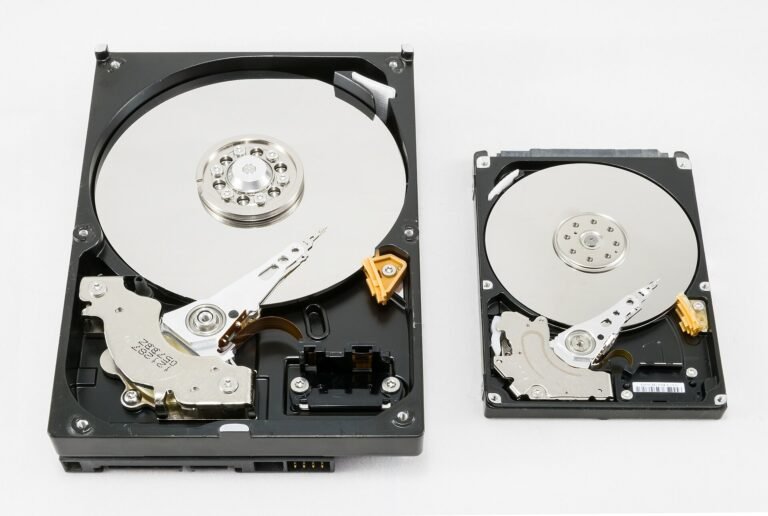
Type: a mechanical drive gives more capacity per naira and is fine for backup. An SSD is faster and far more resistant to being knocked, which matters if it moves around.
Buy from a seller you can return to. Counterfeit and relabelled drives — reporting a large capacity while actually containing far less — circulate widely. Test a new drive by copying a large amount of data to it and reading it back before trusting it.
Keep it disconnected between backups. A drive permanently attached is a drive ransomware can also encrypt.
The step everyone skips
Test the restore.
An untested backup is a belief, not a backup. Once a month or so, pick a file, restore it from the backup, and open it. Confirm it works.
People discover that their backup had been silently failing for eight months at precisely the moment they need it. Ten minutes of testing prevents that entirely.
A realistic setup
If you do nothing else, do this:
Enable automatic photo backup on your phone, set to Wi-Fi only.
Buy an external drive and enable File History or Time Machine.
Put your documents folder in a cloud service with version history.
Once a month, plug in the drive, let it run, and restore one file to check.
That gives you three copies, two types of storage, and one offsite. It takes an hour to establish and then largely looks after itself.
The short version
Sync is not backup — deleting or encrypting a file propagates everywhere, which is precisely the scenario you need protection from.
Follow 3-2-1: three copies, two kinds of storage, one somewhere else. Back up what you cannot replace and ignore what you can.
Use Time Machine on a Mac and File History on Windows, enable phone photo backup on Wi-Fi only, keep the external drive disconnected between runs, and test a restore occasionally.
The best backup is the one that runs without you remembering. Set it up once, verify it works, and then forget about it until the day it saves you.
Sources and verification
We checked the practical guidance on this page against the primary or authoritative references below. Follow the linked source for the latest official position before making a payment or time-sensitive decision.
External drives are where counterfeits and fake capacities are most common. Here is how to choose one, how to test it, and why an untested drive is not a backup.
A slow Windows PC is usually fixable without spending anything. Here are the steps that actually work, in order of impact, plus the two upgrades genuinely worth paying .
Adding RAM is the cheapest meaningful upgrade for most computers. Here is how to check what you need, buy the right kind, and install it without damaging anything.
Battery health is a number most iPhone owners misread. Here is what it actually means, when replacement is genuinely worth it, and what damages a battery fastest.
You can password protect a PDF without paying for software. Here are the free methods on Windows, Mac, phone and online, and which ones are actually secure.
Factory resetting Windows 11 fixes problems a clean-up cannot. Here is every reset option explained, what each one keeps, and how to do it without losing anything.